Settings
One sheet, opened from Home's avatar circle, holding everything that isn't a practice tool — appearance, playing defaults, permissions, recording behavior, accessibility, and support.
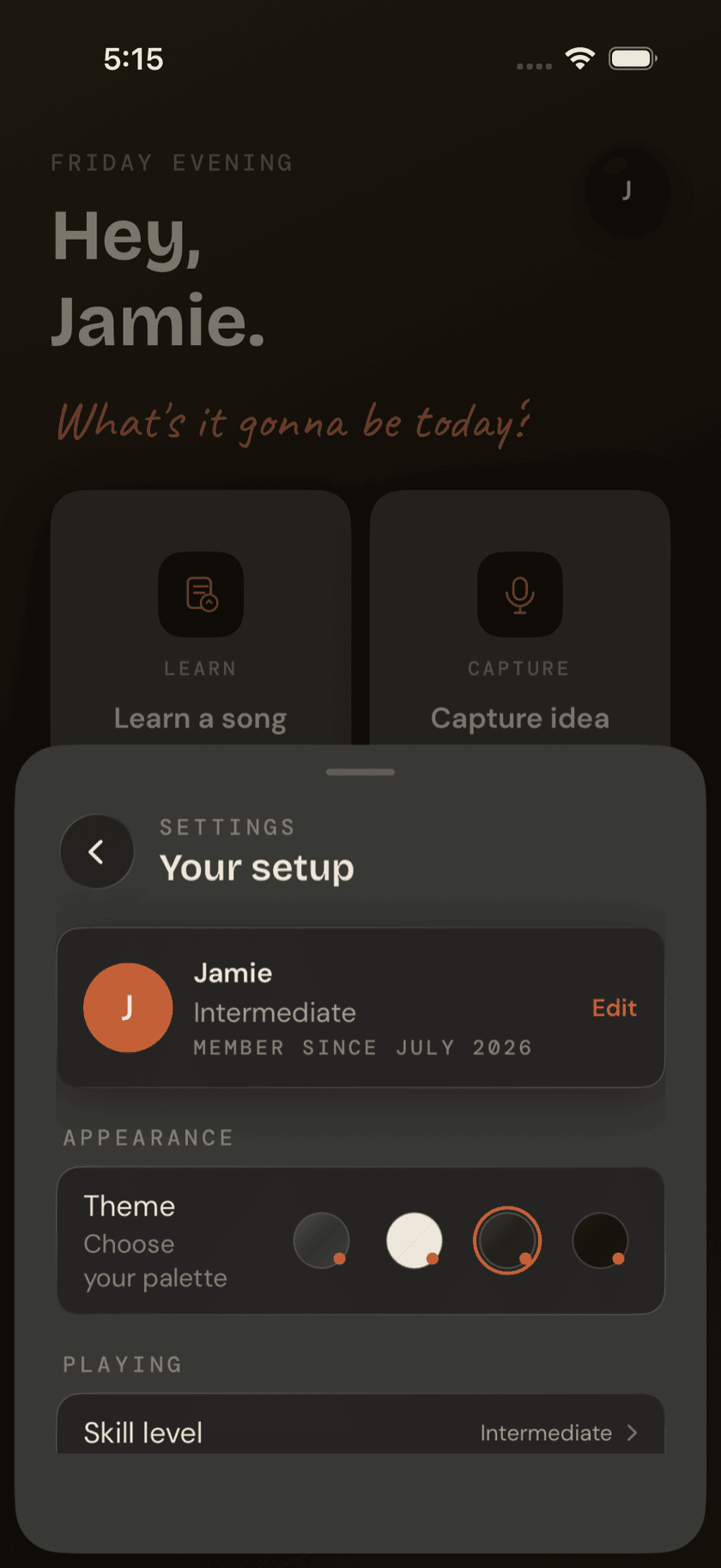
Settings opens as a sheet from the circle in the top-right corner of Home. It doesn't help you play anything — it's where the app's preferences and permissions live, grouped into rows: appearance, playing preferences, permissions, recording behavior, accessibility, support, and privacy. Most of it you'll set once, during onboarding, and never think about again. This is where you come back if you change your mind.
Appearance
The theme picker sits at the top of the sheet. It's the same four themes from onboarding — Strata, Terra, Obsidian, Sand — and picking one works exactly the way it did there: tap a card and the whole app re-skins itself immediately, live, no restart and no preview render standing in for the real thing. Strata is the default, the one you land on the first time you open the app. Switch as often as you like.
Skill level & tuning
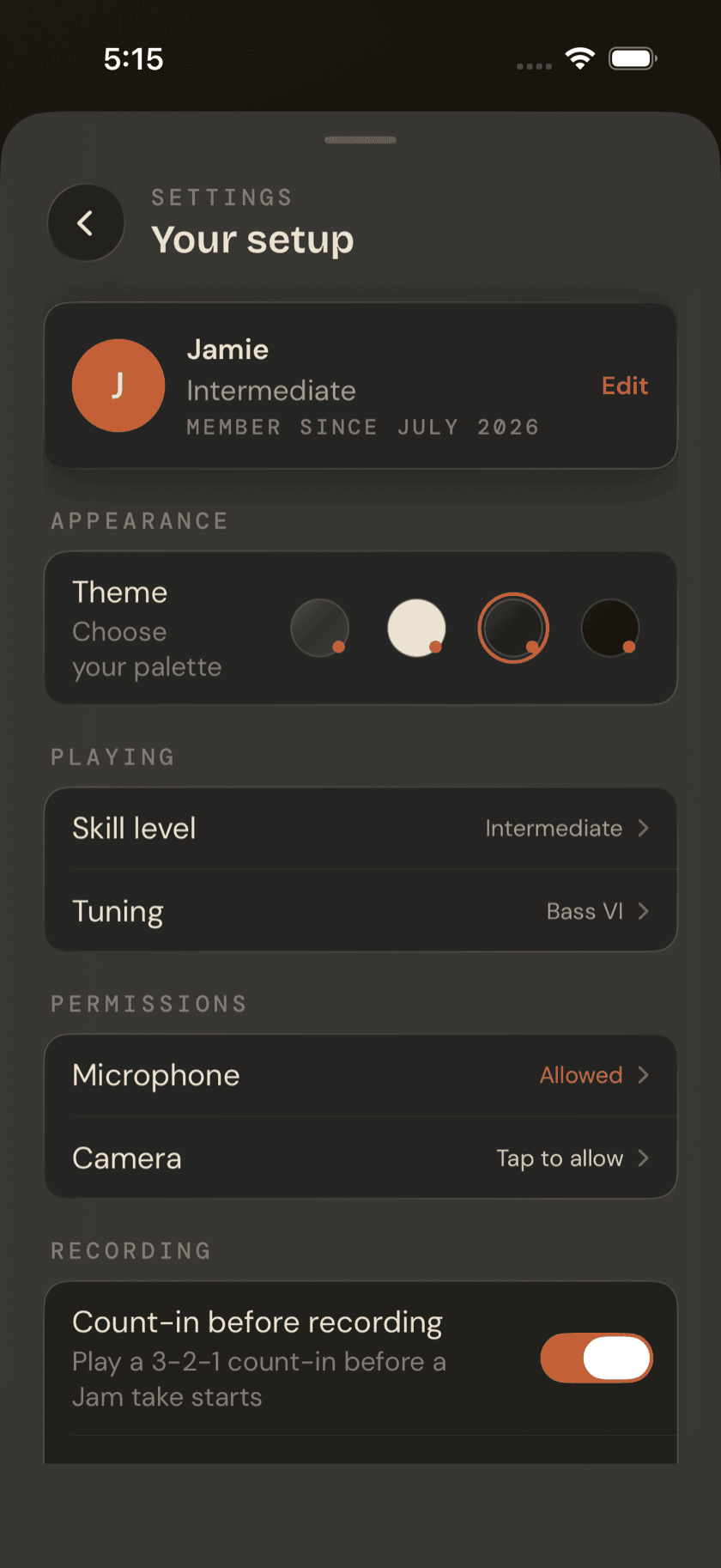
Two quick pickers here, not deep menus. Skill level is the same setting from onboarding — Beginner, Intermediate, Advanced, or Returning — and changing it here reshapes which songs get suggested to you, the same way it did on day one. Tuning is the tuner's active preset — Standard EADG or whatever drop or down-tuned preset you've picked instead. Change it from Settings and it's already set the next time you open Tuner — no need to go there first just to switch tunings.
Permissions
This row reads your actual iOS permission state, live, and shows it plainly: granted or not, for microphone and camera. Tap a permission that hasn't been decided yet and you get the real system prompt. Tap one you've already denied and Settings deep-links you straight to the app's page in iOS Settings instead. Microphone powers the tuner, recording, and chord-scan features; camera powers the document scanner that reads a chord sheet off a photo.
Worth knowing: the deep-link isn't a design choice, it's an iOS constraint. Once you deny a permission, apps can't re-trigger that system prompt — the only way back is through iOS Settings, so that's where this row sends you.
Recording preferences
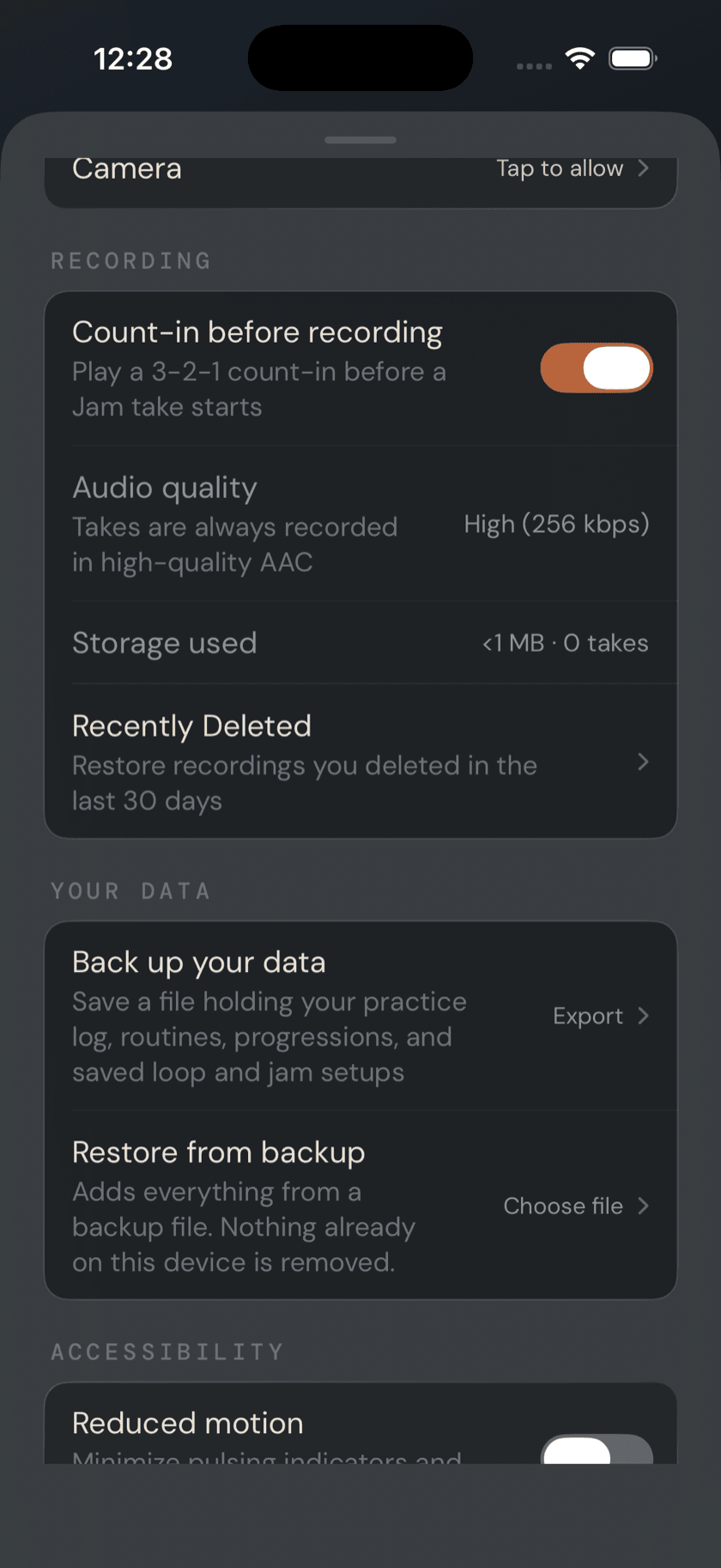
A toggle turns the 3-2-1 count-in on or off before a Jam or loop take starts recording — useful if you want a beat to find your footing, unnecessary if you're already playing when you hit record. Below it, a note that every recording in the app is saved as high-quality AAC, not something you can change per take. Underneath that, a live-computed total: how much storage every recording on your device — song takes, ideas, jam takes, loop takes, all of it — is currently using.
Recently Deleted
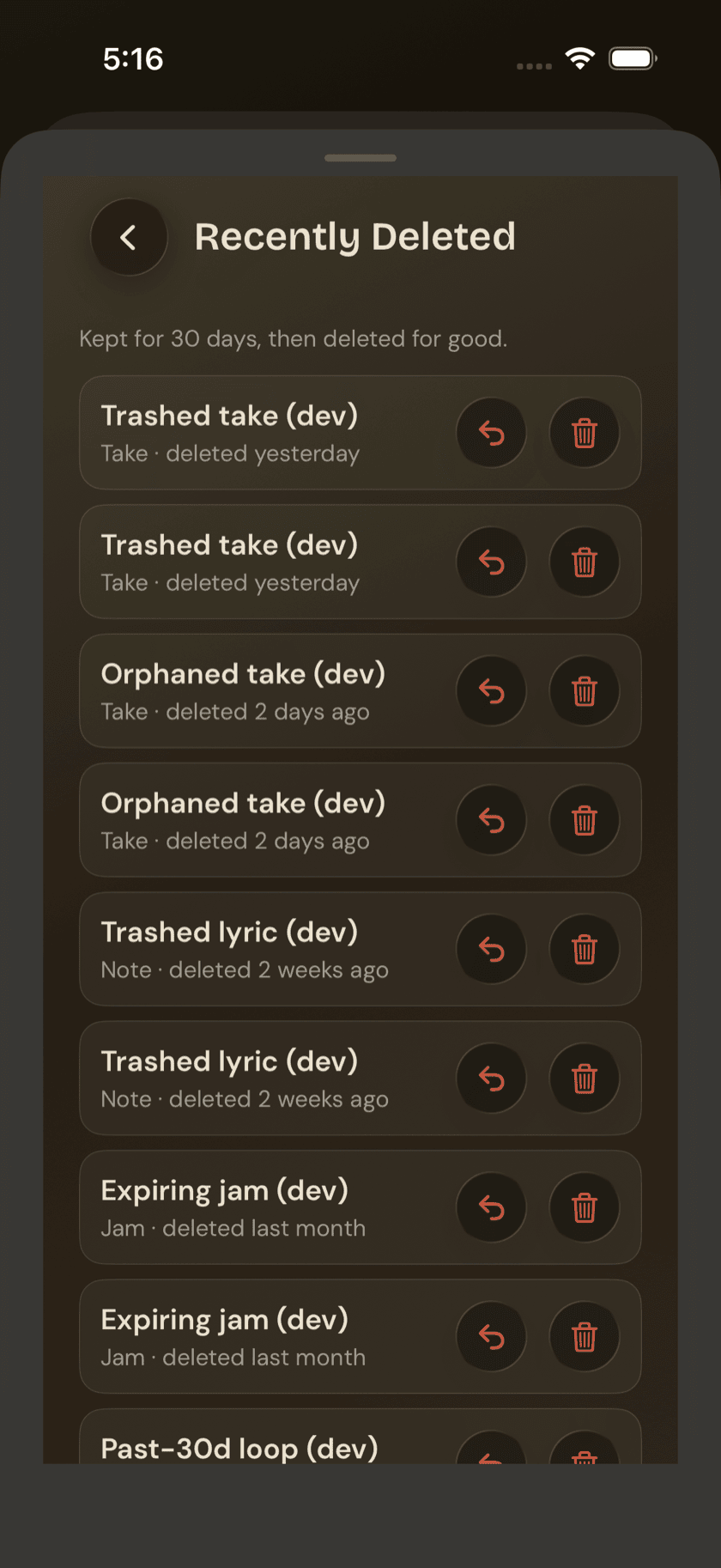
Delete a recording — a take, an idea, a jam take, a loop take — and it doesn't disappear right away. It sits in Recently Deleted for 30 days, the same safety net Voice Memos gives you, in case a delete was a mistake or you change your mind. Each item in the list gives you two choices: Restore it back to where it came from, or delete it permanently, right now, instead of waiting out the 30 days.
Your data
Two rows, both entirely local. Back up your data writes a single file holding the things you've made that aren't recordings — your practice log, your routines, your custom progressions, and your saved loop and jam setups — and hands it to the share sheet, so you can drop it into Files, iCloud Drive, or wherever else you keep things. Restore from backup reads one of those files back in. No account is involved at any point, and nothing leaves your device unless you send it somewhere yourself.
Restoring adds; it never takes away. Anything already on this device is kept — a restore won't overwrite or delete what's there, only fill in what's missing. That makes restoring the same file twice harmless, and it means you can pull a backup onto a phone you're already practicing on without losing the work that's already there. Before it writes anything, the app tells you what the file holds; afterwards, it tells you what it actually added.
Backups can't be carried between the Buddha apps. Open a Guitar Buddha backup here and it's refused by name — routines, tunings, and chord shapes mean different things on a different instrument, so a cross-app restore is always a mistake rather than a merge. Songs, ideas, and recordings aren't in the backup either: those are audio and database files, large enough to turn a small, shareable text file into something that isn't.
Accessibility
One toggle: Reduced Motion. Turn it on and the pulsing indicators and loading animations scattered through the app — the tuner's needle glow, loading spinners, anything that moves on its own — get minimized app-wide. It's there for anyone sensitive to that kind of motion, not a visual preference.
Support
Three rows, grouped together. Tip Jar is an optional, no-obligation tip, bought as an in-app purchase, with a few preset amounts to choose from — the app is upfront about what it does and doesn't do: every feature works the same whether you tip or not, it's not a paywall wearing a friendlier name. Contact opens a pre-addressed email to the developer, useful for a bug report or a feature request that isn't worth a support ticket. Website links out to bass-buddha.com in your browser, in case you want the full song library, the changelog, or this guide on a bigger screen.
Privacy
An analytics toggle, off by default. Turn it on and the app sends anonymous usage data; leave it off and none of that goes out, no data collected in the background waiting for permission you haven't given. A couple of things reach the internet either way, toggle or no — a version check against the App Store, and any YouTube or Ultimate Guitar search you tap. Below the toggle, links out to the privacy policy and terms of use if you want the details in full.
A calmer way to sit with your bass.
Learn songs, capture ideas, jam over backing tracks, and tune up — free, local-first, on iOS, iPadOS & macOS.
Explore Bass Buddha →