Bass Buddha Everywhere
Bass Buddha isn't only an iPhone app — it runs on iPad and Mac, and ships as a standalone Apple Watch app for the times you just need your wrist.
Everything else in this guide describes the iPhone app, but the iPhone isn't the only place Bass Buddha lives. iPad and Mac get native versions with the same tools, laid out for a bigger screen. Apple Watch gets its own stripped-down app built for glancing at your wrist mid-song. None of this is a preview or a "coming soon" — all of it ships today.
iPad
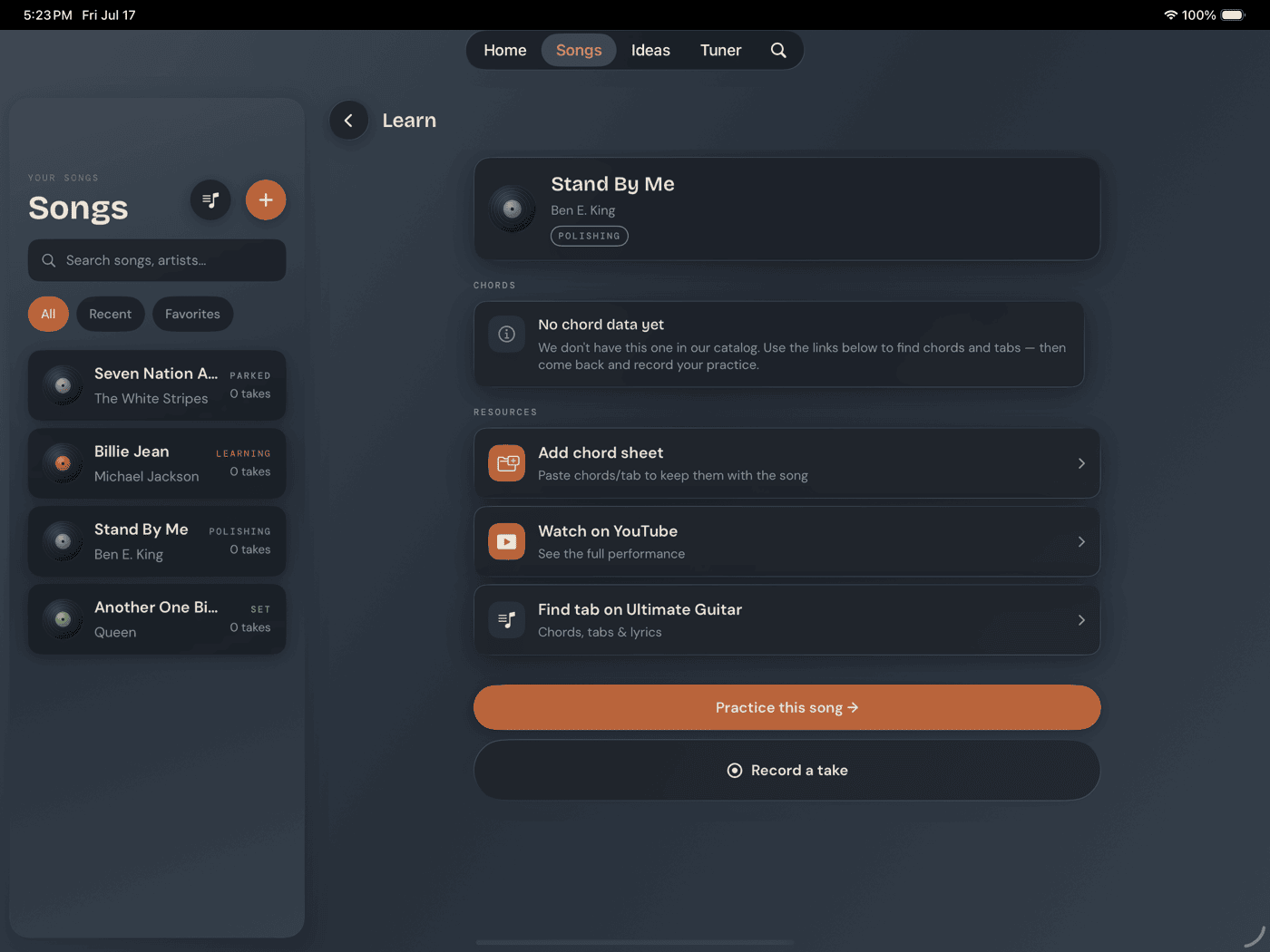
The iPad app is the same app — same tabs, same Practice Hub, same tuner, same catalog. It's a universal build, not a separate app or a separate purchase. What changes is the layout, because an iPad has room an iPhone doesn't, and a few things take advantage of it.
Songs and Ideas become a split view: the library list stays put as a permanent sidebar on the left, while whatever you've selected shows its full detail on the right. On iPhone, tapping an item pushes you forward and back brings you out. On iPad, both are just always there at once.
The grids widen too. Home's four action cards sit in a single row instead of stacking 2×2. The Practice Hub's seven-tile grid goes to three columns instead of two. The chord library grid fits more columns automatically, however much width the screen gives them.
Jam's landscape Performance Mode works the same way it does on iPhone — rotate to landscape and the full-band view takes over the screen.
Worth knowing: iPad adds one thing iPhone doesn't have here — an explicit back-chevron button to exit Performance Mode. On iPhone, rotating back to portrait exits it. iPad doesn't have a reliable version of that gesture, so there's a button instead.
Apple Watch
Bass Buddha's Apple Watch app is a separate, fully standalone watchOS app — it works without the iPhone app installed or nearby. Nothing to pair, nothing to sync.
Three pages, swiped through horizontally:
- Metronome — a big BPM readout, set with the Digital Crown or ±5 buttons, a four-beat dot pulse, and play/stop.
- Tuner — auto-detects which string you're playing. Standard E A D G only — Drop D, Half-Step Down, D Standard, BEAD, Bass VI, and the extended 6-string preset all stay on the phone; there's no tuning picker or manual string-lock on the Watch.
- Chords — one chord at a time: name, diagram, and a Play button that sounds it through the Watch speaker. Page through the same chord catalog as the phone with the Crown.
It's a deliberately stripped-down app — a glance-at-your-wrist subset, not a smaller copy of the phone app. No scale library, no Grooves, no drills, no recording. Those all assume a screen bigger than your wrist and a free hand you don't have while you're playing.
Mac
Bass Buddha for Mac is a native app, not a stretched iPad build, and it's live in the App Store today — not a preview or a promise.
The tab bar is gone, replaced by a sidebar split into two groups: Library (Home, Songs, Ideas) and Play (Jam, Practice, Tuner, Search). The one real behavioral difference sits inside that Play group — on iPhone and iPad, Jam takes over the whole screen as a full-screen cover; on Mac it's a normal sidebar destination, and you click into and out of it exactly like you would Songs or Practice.
A real Mac menu bar comes with it. File ▸ Learn a Song… (⌘N) and File ▸ Capture Idea… (⇧⌘N) drop you straight into those flows without touching the sidebar. A View menu lists all six destinations with ⌘1 through ⌘6, plus ⌘F for Search from anywhere in the app.
A calmer way to sit with your bass.
Learn songs, capture ideas, jam over backing tracks, and tune up — free, local-first, on iOS, iPadOS & macOS.
Explore Bass Buddha →